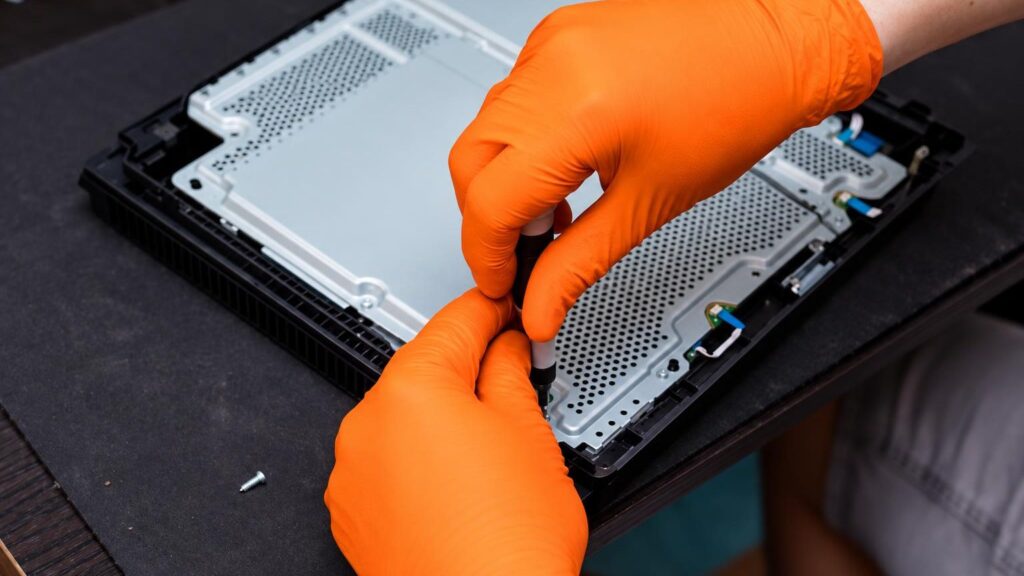
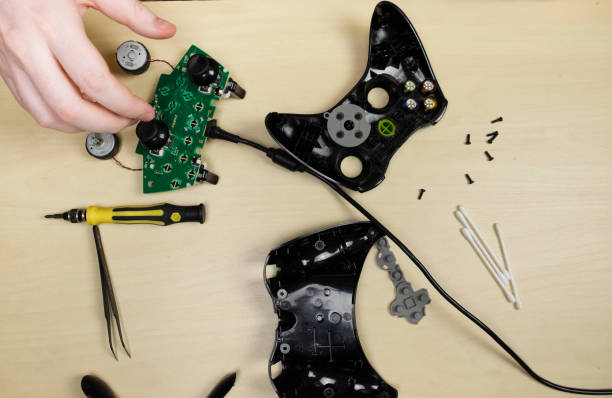
People usually search not for the name of a fault, but for what they see on the screen or hear from the console. That is why we have listed the symptoms the way customers describe them. Prices are approximate; the final price is determined after the diagnostic.
01from €50
PlayStation 5 or PS4 won’t turn on
WhyMost often the cause is the power circuit, a faulty power supply unit or a socket, sometimes a motherboard failure after a power surge. The console may respond only with a short beep or a flash of light and then switch off again.
Check it yourselfCheck that the wall socket works, try another power cable, and plug the cable in more firmly. Disconnect the console from power for a few minutes and try again. Do not open the console – there are mains-voltage parts inside.
What we doWe measure the power circuit, check the power supply unit and the motherboard voltages, and replace faulty components. We wrote about this fault in more detail in the article PlayStation won’t turn on.
02from 30 €
Console turns off by itself or shows a blue screen
WhyThis is often a sign of overheating: clogged ventilation, dried-out thermal paste or impaired cooling. Sometimes the cause is hard drive errors or cracked solder under the motherboard chips.
Check it yourselfPlace the console where air can circulate freely and do not cover its vents. Check whether it turns on again a few minutes after shutting down. If the problem recurs only while gaming, it is worth telling the technician.
What we doWe clean the dust out of the console, replace the thermal paste, and check the temperatures and the condition of the drive. If a chip is at fault, we perform a BGA repair.
03from 60 €
No picture over HDMI
WhyFrom frequent cable pulling, the console’s HDMI port gradually loosens or breaks off, and sometimes the traces or the control chip are damaged. The screen then shows „no signal”, even though the console is running and you can hear sound.
Check it yourselfTry another HDMI cable and another TV input. If you can, connect the console to another TV or monitor. If there is no picture anywhere, the console is probably at fault, not the TV – if another device does show a picture, read about the TV on the TV repair page.
What we doWe inspect the port and its solder, replace the HDMI connector and, if necessary, restore damaged traces.
04from €30
Console overheats and is very loud
WhyA layer of dust clogs the heatsink, and dried-out thermal paste transfers heat poorly. The fan spins at maximum speed, the air coming out of the console is hot, and games start to freeze.
Check it yourselfDo not enclose the console in a cabinet without ventilation, and do not keep it on a soft surface. Dust on the outer vents can be carefully blown off or vacuumed with a dry, weak airflow, but without opening the casing.
What we doWe disassemble the console, clean the heatsink and fan, and replace the thermal paste and any other damaged parts.
05from 45 €
Disc won’t load, can’t be read or is ejected
WhyThe laser head of the disc drive wears out or gets dirty over time, or the drive mechanism fails. The disc drives of the PS4, PS5 and Xbox have different faults, so we determine the cause only after inspecting the specific model.
Check it yourselfTry several different discs and make sure they are not scratched. Keep the console horizontal or vertical as specified by the manufacturer, and do not move it while the disc is spinning.
What we doWe clean and repair the reader, replace the laser head or drive parts and, if necessary, replace the entire disc reader module.
06from 20 €
PlayStation controller repair: the stick moves on its own
WhyThis is known as „drifting”: the potentiometer of the analog stick wears out, so the game registers movement even when you are not touching the controller. It is a common problem with PS4, PS5 and Xbox controllers alike.
Check it yourselfTry recalibrating the controller in the game or console settings and check whether the problem persists in another game. Carefully clean the area around the stick to remove dirt, but do not pour any liquids on it.
What we doWe replace the analog stick or its module and check the buttons, the USB port and other controller parts. For another common controller problem, read the article about controller vibration.
07from 50 €
Nintendo Switch does not charge or does not work with the dock
WhyMost often the USB-C charging port wears out, the battery fails or the dock breaks. Sometimes a chip in the charging circuit fails, and the console does not respond even when connected to power.
Check it yourselfTry the original charger and a different cable, and charge the console without the dock. Check whether there is any dirt in the port, but do not insert metal objects into it and do not open the casing.
What we doWe replace the charging port, check the charging circuit and the battery and, if necessary, replace faulty components.
08from 20 €
Switch Joy-Con drift or unresponsive buttons
WhyThe sticks of the Joy-Con controller wear out extremely quickly, and the button contacts wear down or get dirty. As a result, the character moves on its own or commands are not registered.
Check it yourselfUpdate the controller firmware and repeat the calibration in the settings. If one Joy-Con works and the other does not, this helps to identify the faulty side more quickly.
What we doWe replace the analog stick or the button module, and check the connection board and the rest of the controller electronics.
09from 25 €
Xbox does not turn on or freezes at the logo
WhyThe causes include the power supply unit, corrupted software, hard drive errors or a motherboard failure. If the console freezes on the green screen or in a boot loop, corrupted system software is often to blame.
Check it yourselfCheck the power cable and the socket, disconnect the console from power for a minute, then restart it. Do not open the console or its power supply unit – there is dangerous voltage inside.
What we doWe check the power supply unit and the motherboard, restore the software, and replace the drive or other faulty parts.
10from 25 €
Console freezes, shows error codes or games will not launch
WhyThis may be a software malfunction, corrupted system files, a full or failing drive, or a hardware fault that at first shows up only as errors.
Check it yourselfCheck the free space on the drive and update the system. Write down the error code and when it appears – this greatly helps with diagnostics.
What we doWe distinguish between software and hardware causes, restore the system, replace the drive or repair the motherboard.