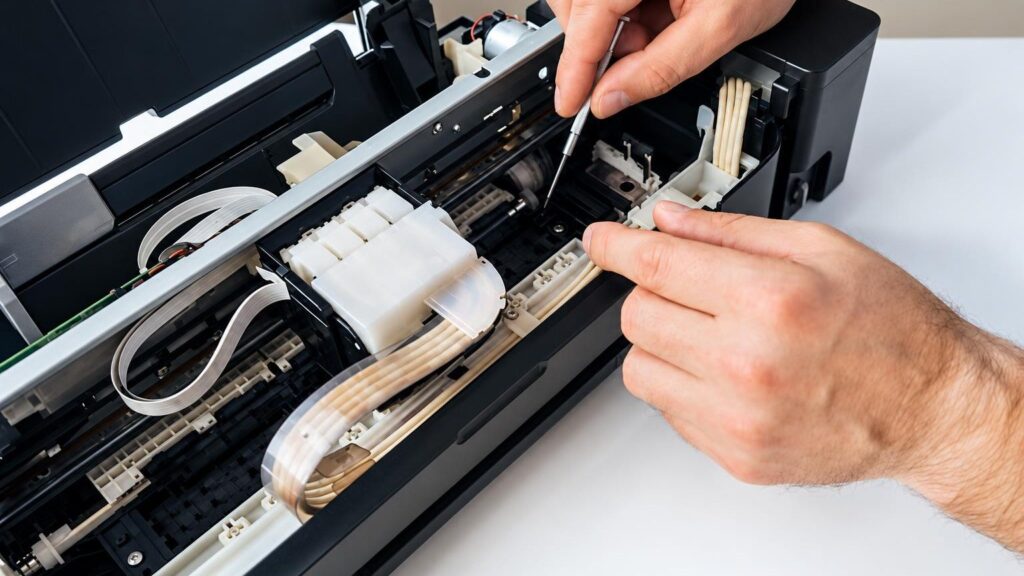
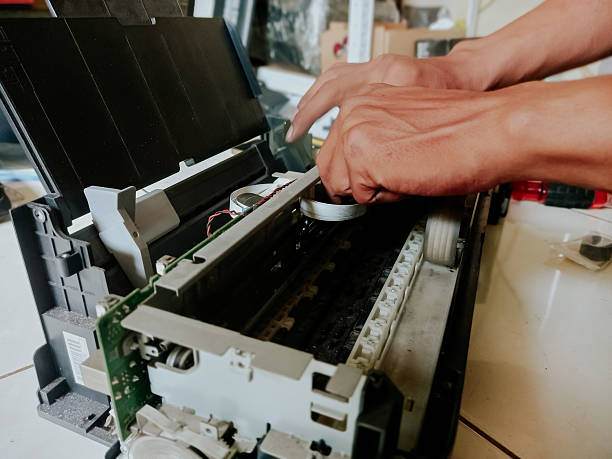
Below are problems phrased the way people most often search for them. For each one, we indicate what most likely happened, what you can check yourself and what the technician does.
01from 35 €
Printer not working
WhyThe cause can range from simple (lost connection, stuck print queue, empty tray) to serious (a faulty power supply unit or main board). If the device shows no signs of life at all, the power electronics are most often to blame.
Check it yourselfCheck that the cable is firmly plugged into the socket and the device, and try a different socket. Turn the printer off, wait a few minutes and turn it on again. Check that this printer is selected on your computer and that the queue is not paused.
What we doWe diagnose the power circuits, the board and the sensors, determine whether the fault is hardware or software related, and provide the repair price.
02from 25 €
Printer does not pick up paper
WhyMost often the paper pickup rollers are worn or dusty and lose their grip on the sheet. Sometimes the cause is damp or creased paper, an overfilled tray or a damaged separation mechanism.
Check it yourselfRemove the paper, flatten it, keep the pack in a dry place and do not fill the tray to the edges. With a lint-free damp cloth (device switched off and unplugged from the mains) you can wipe the visible part of the roller. Read more in the article on paper not being detected.
What we doWe clean the paper path, replace the pickup and separation rollers, and check the paper sensors.
03from 20 €
Paper jams
WhyScraps of paper stuck at the edge, worn rollers, unsuitable paper or a layer of dust on the sensors. If the jam always happens in the same place, this points to mechanical damage.
Check it yourselfPull the sheet out slowly in the direction of the paper path, and do not use force or sharp tools. Check that no torn-off piece remains inside. Read more about the causes of paper jams.
What we doWe remove the stuck parts, clean the mechanism, and replace broken gears and rollers.
04from 25 €
The printer does not print in black
WhyIn an inkjet device, the print head is most often clogged or the ink has dried out. In a laser one, the toner is running out, or the drum or cartridge contacts are faulty.
Check it yourselfRun the built-in head cleaning function and print a test page, but do not repeat the cleaning more than 2–3 times in a row. Check that the black ink or toner has not run out. Read more – what to do when it does not print black.
What we doWe clean or replace the head, and check the drum, the charging components and the cartridge contacts.
05from 45 €
Printer prints faintly, with streaks or smudges
WhyIn a laser device, smudges and streaks are often caused by a worn drum, a dirty cleaning blade or a damaged fuser unit. In an inkjet, streaks appear because of clogged nozzles.
Check it yourselfCheck the paper type in the print settings and try a different pack of paper. If you have a spare cartridge, try installing it. Read more about a faint laser printer print.
What we doWe determine which unit is at fault: the cartridge, drum, fuser unit or head, and replace only what has failed.
06from 20 €
Printer does not detect the cartridge or ink
WhyOften the cause is dirty cartridge contacts, an incorrectly installed cartridge, an incompatible chip or a faulty ink level sensor. After refilling a cartridge, the counter sometimes needs to be reset.
Check it yourselfRemove the cartridge and reinsert it until you hear a click. Without touching the contacts, check whether they are dirty. Read more in the article printer does not detect the cartridge.
What we doWe clean and check the contacts, check the cartridge slot and sensors, and restore the firmware if the error is software-related.
07from 35 €
The printer shows an error and stops
WhyAn error code may indicate a paper jam, a fuser unit that failed to heat up, a jammed carriage movement or a faulty sensor. The same error can have different causes in different models.
Check it yourselfWrite down the error code and the model. Unplug the device from the mains for a few minutes and restart it. If the error keeps recurring, do not switch it on repeatedly in a row.
What we doUsing the code and measurements, we find the real cause: we replace the sensor, carriage parts or fuser unit, or repair the board.
08from 35 €
The printer does not turn on
WhyMost often it is a burnt-out power supply unit, a damaged cable or a short circuit on the board. After a thunderstorm or a voltage surge, the power supply assembly may also fail.
Check it yourselfTry a different outlet and a different cable, if it is detachable. Do not open the device housing – there are mains-voltage circuits inside.
What we doWe measure the power circuits, repair or replace the power supply unit, and check whether the main board is damaged.
09from 20 €
The printer is not reachable over Wi-Fi or prints very slowly
WhyThe most common cause is a changed router or password, an outdated driver or a weak signal. Sometimes the printer’s own Wi-Fi module fails.
Check it yourselfMove the printer closer to the router, restart both devices, and check that the computer is connected to the same network. We described more complex network cases in the article on network printer configuration.
What we doWe restore the firmware, reconfigure the network connection from scratch, and check the Wi-Fi module.
10from 35 €
The multifunction device no longer scans or copies
WhyIf printing works but the scanner does not, the cause is the scanning module, a broken flat cable, a dirty glass or the ADF document feeder mechanism.
Check it yourselfClean the scanner glass without using too much liquid, and remove paper clips and other small objects from the document feeder. For more about the feeder, read about the multifunction printer ADF scanner.
What we doWe diagnose the scanning assembly, replace cables, rollers or sensors, and repair the board when necessary.